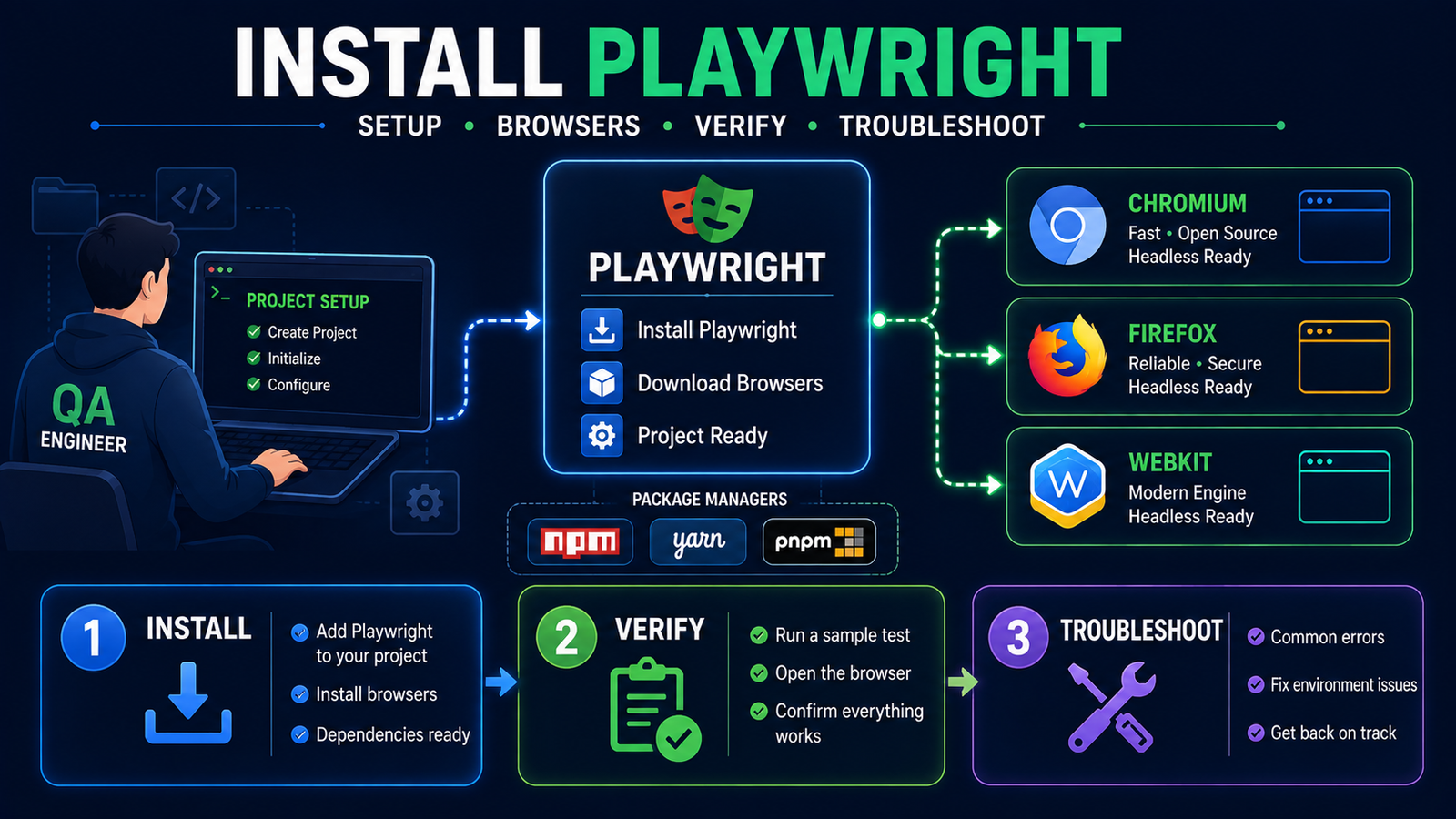
If you want to install Playwright correctly, think of setup as more than a single npm command.
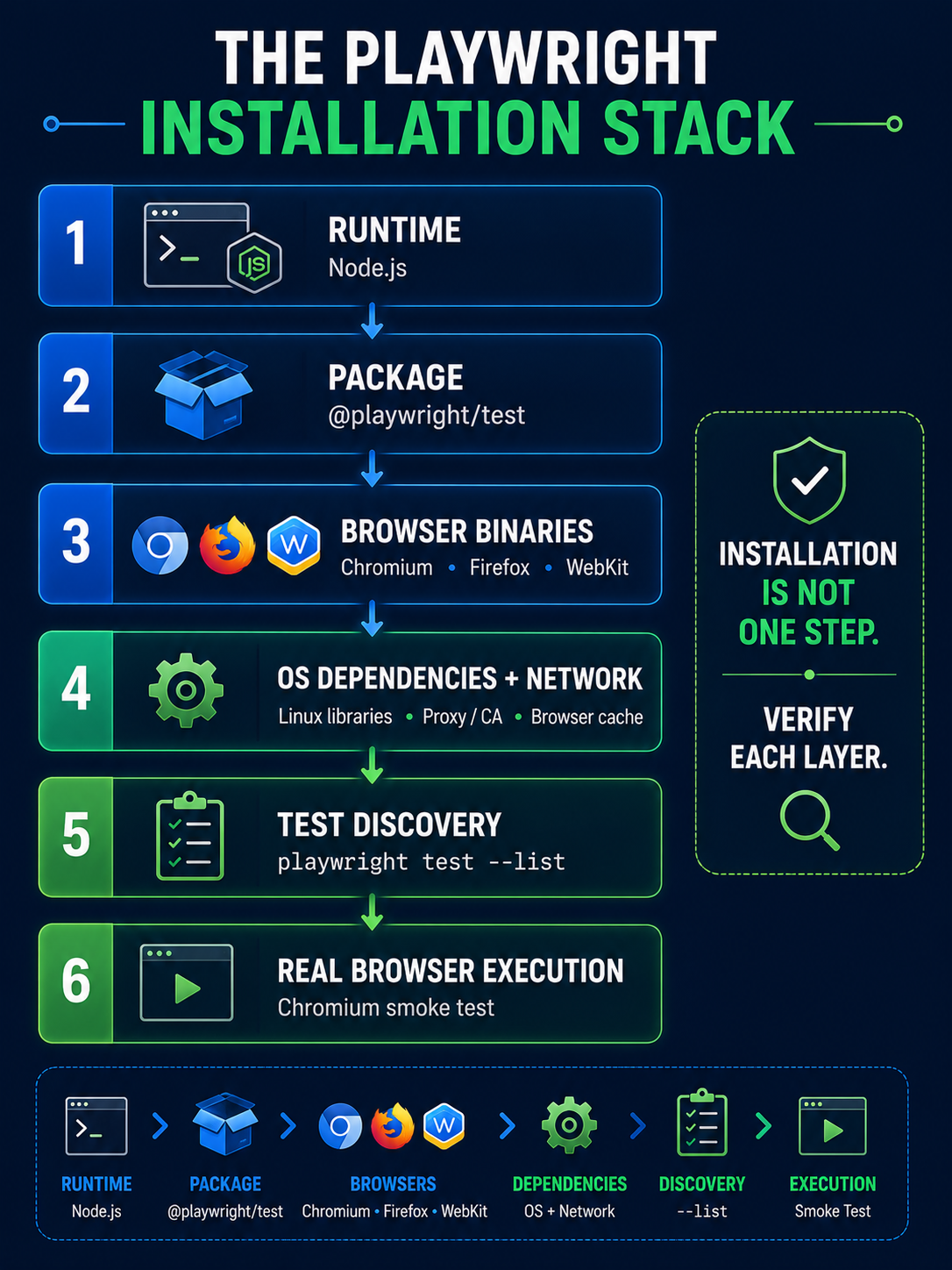
A working Playwright environment has several layers:
runtime → Playwright package → browser binaries → OS/network dependencies → test discovery → real browser execution
For a new TypeScript/JavaScript project, the current official setup starts with:
npm init playwright@latest
Yarn and pnpm are also supported:
yarn create playwright
pnpm create playwright
This guide shows you how to install Playwright, understand what the installer actually adds, verify every layer, and fix the setup failures that usually waste the most time.
If you are still deciding whether Playwright is the right framework, start with our complete Playwright automation guide.
Quick Answer: How Do You Install Playwright?
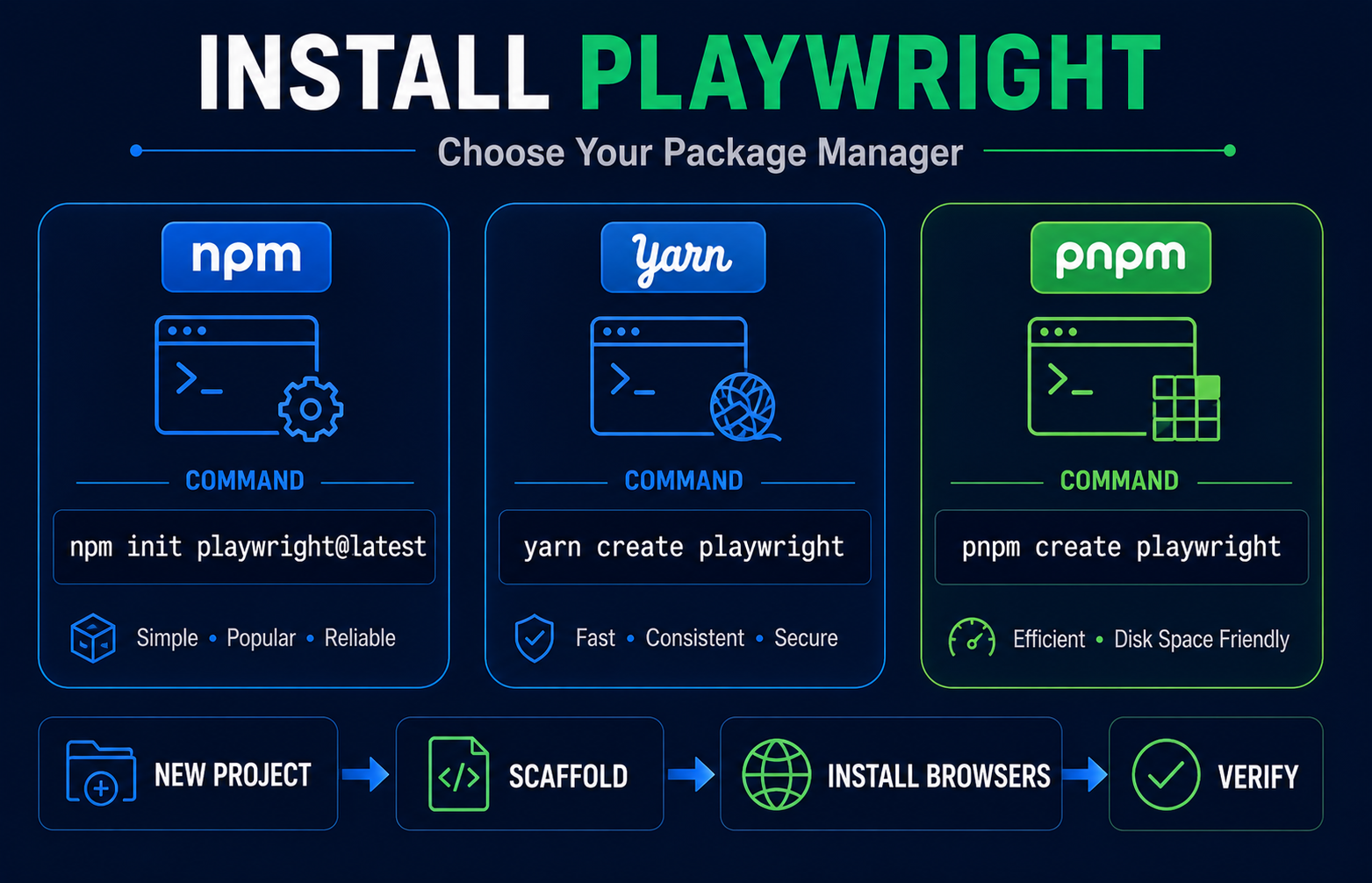
For a brand-new Node.js Playwright Test project, use one of these commands:
| Package manager | Command |
|---|---|
| npm | npm init playwright@latest |
| Yarn | yarn create playwright |
| pnpm | pnpm create playwright |
The setup wizard creates the project structure and can install the browser binaries Playwright needs.
If Playwright Test is being added manually to an existing project, install the package first and then install the matching browsers:
npm i -D @playwright/test
npx playwright install
That distinction is important:
The Playwright package and the Playwright browser binaries are separate setup layers.
Before You Install Playwright
Before running commands, check three things:
- your operating system;
- your runtime;
- which Playwright language ecosystem you actually want.
Choose the language path first
Playwright officially supports JavaScript/TypeScript, Python, Java, and .NET.
For this setup guide, the primary path is TypeScript/JavaScript because that is the most direct route into Playwright Test.
| Your environment | Recommended starting path |
|---|---|
| New Playwright-first web automation project | TypeScript / JavaScript |
| Python-heavy QA team | Python |
| Enterprise Java team | Java |
| Microsoft/.NET team | .NET |
PW-02 does not contain four full language tutorials. The dedicated Python, TypeScript, and Java guides in the Testheon Playwright series will own deeper ecosystem-specific setup.
For the broader learning sequence, see the QA Skill Map for 2026.
Check Node.js before you start
For the Node/TypeScript Playwright Test path, verify your current runtime:
node --version
npm --version
Freshness note: Playwright changes its supported Node.js matrix over time. The official Playwright installation page should be treated as the source of truth before you install.
As of this article’s August 2026 technical review, current Playwright Test documentation lists Node.js 22.x, 24.x, or 26.x.
Use the current official requirement instead of copying a stale setup article.
Official reference: Playwright installation guide
Install Playwright with npm, Yarn or pnpm
npm
For a new project:
npm init playwright@latest
The interactive setup asks questions such as:
- TypeScript or JavaScript;
- test-folder location;
- whether to add a GitHub Actions workflow;
- whether to install Playwright browsers.
For most new QA automation projects, TypeScript is a sensible default if your team does not already have another language constraint.
Yarn
yarn create playwright
pnpm
pnpm create playwright
Adding Playwright Test to an existing project
If you already have a Node project and want to add Playwright Test manually:
npm i -D @playwright/test
npx playwright install
Equivalent Yarn and pnpm flows are:
yarn add --dev @playwright/test
yarn playwright install
pnpm add -D @playwright/test
pnpm exec playwright install
Why the browser-install step matters
One of the most common outdated Playwright instructions is:
“Install the npm package and all browsers are automatically ready.”
That is not a safe assumption for a manual install.
Playwright packages and browser binaries are version-coupled. If you install the package manually—or upgrade Playwright—you may need to run the browser installation step so the expected browser revisions are available.
Official references:
Understand What Playwright Actually Installs
A Playwright setup becomes much easier to troubleshoot when you stop thinking of it as one installation.
Layer 1: Runtime
For TypeScript/JavaScript, that is Node.js.
If Node itself is unsupported or unavailable, nothing above it can work.
Layer 2: Playwright package
For Playwright Test:
@playwright/test
This provides the test framework, assertions, configuration, and Playwright integration.
Layer 3: Browser binaries
Playwright uses browser builds matched to the installed Playwright version.
Install them with:
npx playwright install
You can also install only the browser you need:
npx playwright install chromium
or:
npx playwright install webkit
Layer 4: OS dependencies
Linux environments may need additional system libraries.
Playwright provides:
npx playwright install-deps
or browser + dependencies together:
npx playwright install --with-deps chromium
A useful diagnostic command on supported Linux systems is:
npx playwright install-deps --dry-run
That lets you inspect missing dependency work before changing the machine.
Layer 5: Test discovery
Your environment can have Playwright installed and still have a bad test configuration.
Check whether Playwright sees your tests:
npx playwright test --list
Layer 6: Real browser execution
The final proof is not a version command.
It is an actual browser run.
That is why the verification section below matters.
Install Playwright Browsers
Install all default Playwright browsers:
npx playwright install
Install Chromium only:
npx playwright install chromium
Install WebKit only:
npx playwright install webkit
List what Playwright currently knows is installed:
npx playwright install --list
Where are Playwright browsers stored?
The default cache location differs by operating system.
| OS | Typical Playwright browser cache |
|---|---|
| Windows | %USERPROFILE%\AppData\Local\ms-playwright |
| macOS | ~/Library/Caches/ms-playwright |
| Linux | ~/.cache/ms-playwright |
Playwright also supports PLAYWRIGHT_BROWSERS_PATH when teams need a different/shared browser location.
This becomes especially relevant in CI, Docker, or environments where the install process and test process run under different users.
Verify Your Playwright Installation
Do not stop after npm install succeeds.
Use a simple verification ladder.
1. Check the runtime
node --version
npm --version
2. Check Playwright
npx playwright --version
3. Check browser binaries
npx playwright install --list
4. Check test discovery
npx playwright test --list
5. Run a real Chromium smoke check
Create:
tests/testheon-smoke.spec.ts
import { test, expect } from '@playwright/test';

test('Testheon Playwright pillar is reachable', async ({ page }) => {
  await page.goto('https://testheon.com/playwright-automation/');

  await expect(page).toHaveURL(/\/playwright-automation\/?$/);
  await expect(page.locator('h1')).toBeVisible();
});
Run only that test:
npx playwright test tests/testheon-smoke.spec.ts --project=chromium
This test intentionally does almost nothing.
That is the point.
PW-02 only needs to prove:
- Playwright can discover a test;
- Chromium can launch;
- navigation works;
- an assertion can execute.
Learning locators, assertions, fixtures, and real test design belongs in PW-03 — Playwright Tutorial.
Optional visual checks
Run headed:
npx playwright test --headed
Run UI mode:
npx playwright test --ui
Open the HTML report:
npx playwright show-report
If these work, your setup is ready for the next stage.
Fix Common Playwright Installation Errors
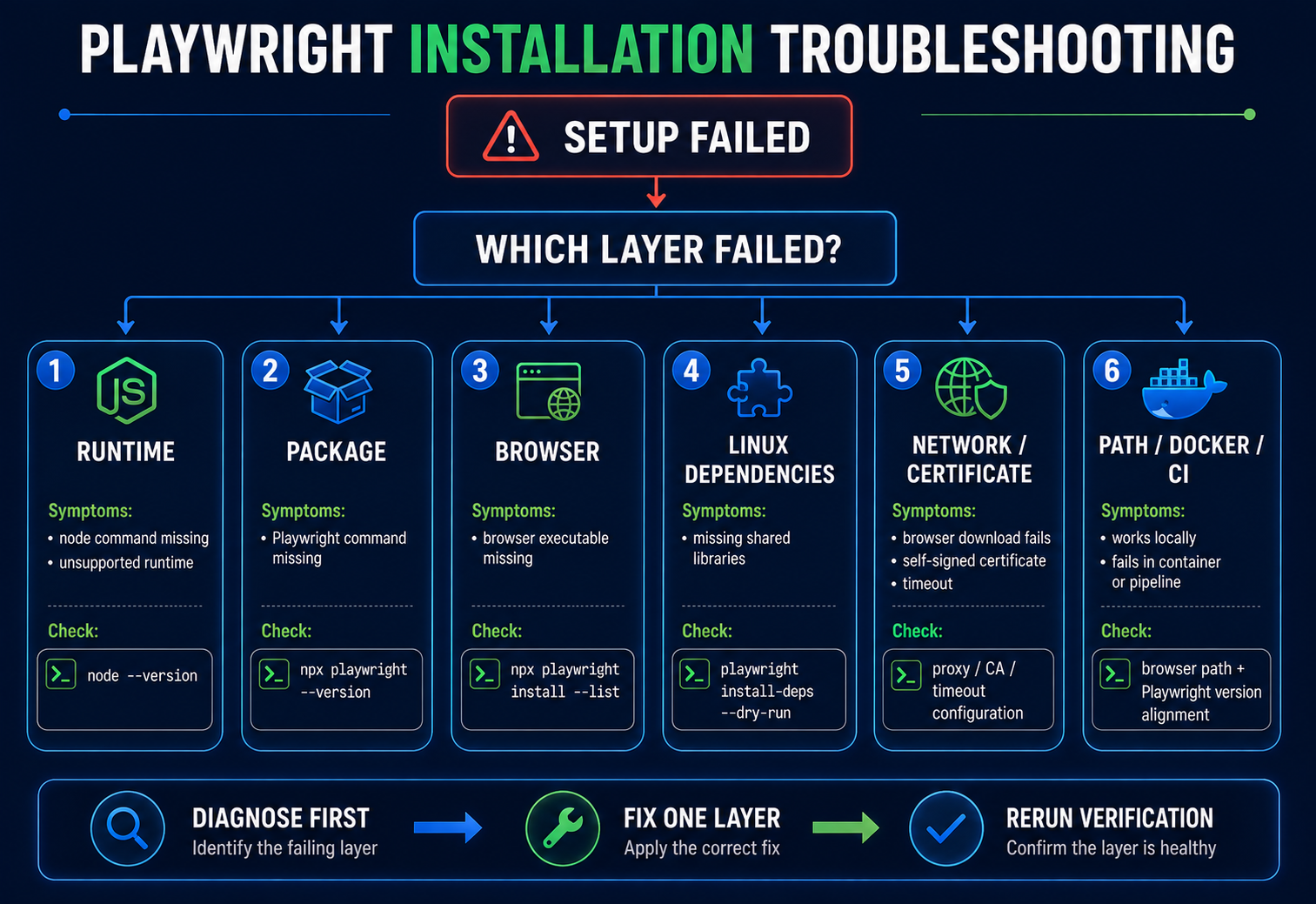
Randomly deleting node_modules, reinstalling everything, and adding sudo is not a troubleshooting strategy.
Start by identifying which layer failed.
| Symptom | Likely layer | First thing to check |
|---|---|---|
node command not found |
Runtime | node --version |
| Playwright command missing | Package | package installation |
| Browser executable missing | Browser binary | npx playwright install --list |
| Shared-library error on Linux | OS dependency | install-deps --dry-run |
| Browser download fails | Network/proxy | HTTPS_PROXY / CA |
| Works locally, fails in CI | Path/version/env | cache path + versions |
| Docker browser missing | Image/package mismatch | pinned Playwright versions |
Browser executable does not exist
If Playwright reports that a browser executable does not exist, check installed browser revisions:
npx playwright install --list
Then install the matching browsers:
npx playwright install
A common cause is changing the Playwright package version without refreshing the browser binaries expected by that version.
Linux dependencies are missing
Inspect first:
npx playwright install-deps --dry-run
Then install dependencies if appropriate:
npx playwright install-deps
Or install Chromium plus dependencies together:
npx playwright install --with-deps chromium
Use elevated privileges only where the operating-system package manager genuinely requires them.
Do not turn every Playwright permission problem into a sudo problem.
Browser downloads fail behind a corporate proxy
Playwright browser binaries are downloaded from Microsoft-hosted infrastructure. Corporate networks may require an HTTPS proxy.
Bash:
HTTPS_PROXY=https://proxy.example.test:8443 npx playwright install
PowerShell:
$Env:HTTPS_PROXY="https://proxy.example.test:8443"
npx playwright install
Windows cmd:
set HTTPS_PROXY=https://proxy.example.test:8443
npx playwright install
Do not paste real proxy credentials into blog comments, public issue trackers, or public AI prompts.
Self-signed certificate error
If your organisation performs TLS inspection and Playwright reports a certificate-chain error, use the trusted corporate root CA instead of disabling TLS verification.
Bash:
export NODE_EXTRA_CA_CERTS="/path/to/company-root.pem"
npx playwright install
PowerShell:
$Env:NODE_EXTRA_CA_CERTS="C:\certs\company-root.crt"
npx playwright install
Do not “fix” certificate errors by turning off SSL validation.
Browser download times out
For slow or inspected networks, Playwright supports increasing the connection timeout.
Example:
PLAYWRIGHT_DOWNLOAD_CONNECTION_TIMEOUT=120000 npx playwright install
Only change the timeout when the evidence points to a download-timeout problem.
Browser path/cache problems
If installation succeeds under one user but tests run under another, verify that both processes see the same Playwright browser location.
Check:
npx playwright install --list
If your environment deliberately uses a custom browser cache, keep PLAYWRIGHT_BROWSERS_PATH consistent between the installation and test-execution processes.
Docker or CI version mismatch
Playwright Docker images contain browser binaries.
If your project package version and Docker image version do not match, your test process can expect a browser revision that is not present in the image.
The fix is not “download random browsers until it works.”
Pin compatible project and image versions.
For full CI/container implementation, keep this page as the setup overview and move detailed pipelines to the dedicated Playwright CI/CD article.
Official reference: Playwright Docker
From a QA Engineer’s Perspective: Verify Before Reinstalling
Before deleting caches or reinstalling your entire environment, run these five checks:
1. node --version
2. npx playwright --version
3. npx playwright install --list
4. npx playwright test --list
5. run one Chromium smoke test
Those five checks tell you far more than:
rm -rf everything
npm install again
Good troubleshooting is about isolating the failed layer.
⚡ AI Shortcut: Diagnose Playwright Setup Faster
Installation problems are a good use case for AI because terminal output is structured and most failures can be classified into a small number of layers.
AI should help you diagnose, not blindly execute commands.
For a broader comparison of AI-assisted QA platforms, see our AI testing tools guide.
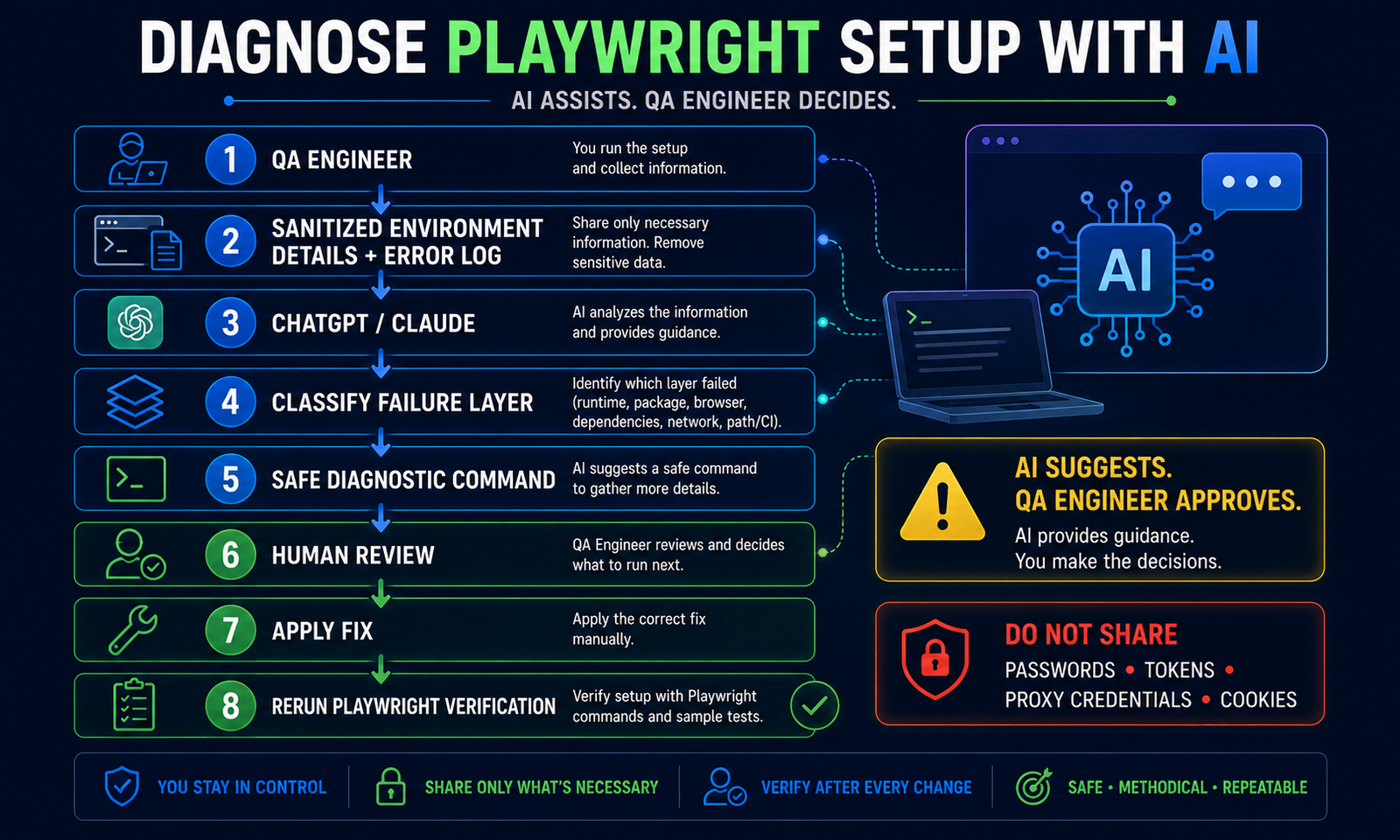
📋 Copy this ChatGPT / Claude prompt
You are helping me diagnose a Playwright Test installation.

Do NOT make changes automatically and do NOT tell me to delete files
unless you explain why first.

My environment:
- OS and version: <paste>
- CPU architecture: <paste>
- Node version: <paste node --version>
- npm/yarn/pnpm version: <paste>
- Playwright version: <paste npx playwright --version>
- Package manager: <npm | yarn | pnpm>
- Installation method I used: <paste command>
- Browser list: <paste npx playwright install --list>
- Behind corporate proxy/VPN: <yes/no/unknown>
- Docker/CI: <yes/no; details>

Failure output:
<PASTE COMPLETE TERMINAL ERROR HERE>

Please:
1. Classify the failure as one of:
   runtime / package / browser binary / OS dependency /
   network-proxy / certificate / cache-path / Docker-version /
   test-configuration / unknown.
2. Explain the evidence for your classification.
3. Give the smallest safe diagnostic command to run next.
4. Give the corrective command only after the diagnostic step.
5. Keep npm, Yarn and pnpm syntax separate.
6. Do not suggest sudo unless the operation genuinely needs
   system-level dependency installation.
7. Do not disable TLS verification.
8. Do not delete browser caches until you have checked
   `npx playwright install --list` and relevant browser paths.
9. After the fix, give me this verification sequence:
   - runtime check
   - Playwright version
   - browser installation check
   - test discovery
   - one Chromium smoke run
10. Flag anything in your advice that depends on my Playwright version.
Before you paste logs into AI
Remove:
- passwords;
- private npm registry tokens;
- proxy credentials;
- cookies;
- session tokens;
- API keys;
- internal hostnames if company policy prohibits sharing them.
Human verification checklist
Before executing AI-generated commands, ask:
- Does this command match my package manager?
- Is it from or consistent with current Playwright documentation?
- Is AI trying to disable TLS?
- Is it asking for unnecessary administrator/root access?
- Is it deleting caches before proving the cache is actually the problem?
- Does the advice expose company credentials or private infrastructure?
- Is the failure really installation-related, or has the problem moved into test code?
If the AI cannot classify the failure confidently, return to the installation stack and isolate the layer manually.
What About Playwright CLI, MCP, and Test Agents?
Playwright’s 2026 ecosystem includes agent-oriented tooling, but those tools are not prerequisites for installing Playwright Test.
A simple mental model is:
| Need | Use |
|---|---|
| Deterministic automation suite | Playwright Test |
| Coding agent controlling a browser from a repo workflow | Playwright CLI |
| MCP-compatible agent needing structured browser interaction | Playwright MCP |
| AI-assisted plan/generate/heal workflow | Playwright Test Agents |
Set up Playwright Test first.
Then add the agent layer only when you have a reason to use it.
The dedicated Testheon Playwright MCP, AI, and Test Agents articles will cover that workflow in depth.
Official references:
What Should You Learn After Installation?
Once these checks pass:
- runtime works;
- Playwright package works;
- browser binaries exist;
- Playwright discovers tests;
- Chromium launches successfully;
stop changing the setup.
Your environment is ready.
The next skill is learning how to write Playwright tests properly: locators, assertions, navigation, waits, fixtures, and debugging.
That belongs in PW-03 — Playwright Tutorial.
If you want the wider learning sequence before moving on, see the QA roadmap and the Playwright automation pillar.
Playwright Installation FAQ
How do I install Playwright?
For a new Node Playwright Test project, use npm init playwright@latest, yarn create playwright, or pnpm create playwright. The setup wizard creates the project and can install required browser binaries.
Do I need Node.js for Playwright?
You need Node.js for the JavaScript/TypeScript Playwright Test ecosystem. Playwright also has official Python, Java, and .NET bindings with their own runtime requirements.
Does npm install playwright install all browsers automatically?
Do not assume that. With a manual package installation, browser binaries are a separate setup layer. Use the current official browser-install command for the Playwright version you installed.
What does npx playwright install do?
It downloads browser binaries expected by the installed Playwright version.
Can I install only Chromium?
Yes:
npx playwright install chromium
What does --with-deps do?
It installs the selected browser together with required operating-system dependencies where supported.
Example:
npx playwright install --with-deps chromium
How do I check which Playwright browsers are installed?
Use:
npx playwright install --list
Why does Playwright fail behind a corporate proxy?
Browser downloads may need your organisation’s HTTPS proxy, trusted corporate CA, or longer connection timeout. Use security-approved proxy/certificate configuration rather than disabling TLS validation.
How do I know Playwright is installed correctly?
Check the runtime, Playwright version, browser list, test discovery, and finally run one real Chromium smoke test.
Should I use Playwright MCP immediately after installation?
Not necessarily. Install and verify Playwright Test first. MCP, CLI, and Test Agents are additional agent-oriented workflows, not prerequisites for writing a normal Playwright test suite.
Final Setup Checklist
Before moving to the Playwright tutorial, confirm:
- supported runtime installed;
- Playwright Test package installed;
- matching browser binaries installed;
- OS dependencies satisfied;
-
npx playwright --versionworks; -
npx playwright install --listshows expected browsers; -
npx playwright test --listdiscovers tests; - Chromium smoke test runs;
- report/headed/UI mode works if needed;
- no proxy/certificate workaround weakens security;
- package and browser versions are aligned.
If every item is green, installation is finished.
Do not keep “optimising the setup.”
Start learning Playwright.